 FLASHLOOK.AI
148 ready-made looks: meet the Flashlook presets library
Studios, real locations and furnished interiors - pick a finished look and put it on your next shoot in one click. Here's what's in the library and how to use it.
Every shoot starts with the same question: where, and how? A seamless studio or a sunny street? Soft daylight or neon? Relaxed and seated, or striding toward the camera? Until now, answering it meant setting each option by hand.
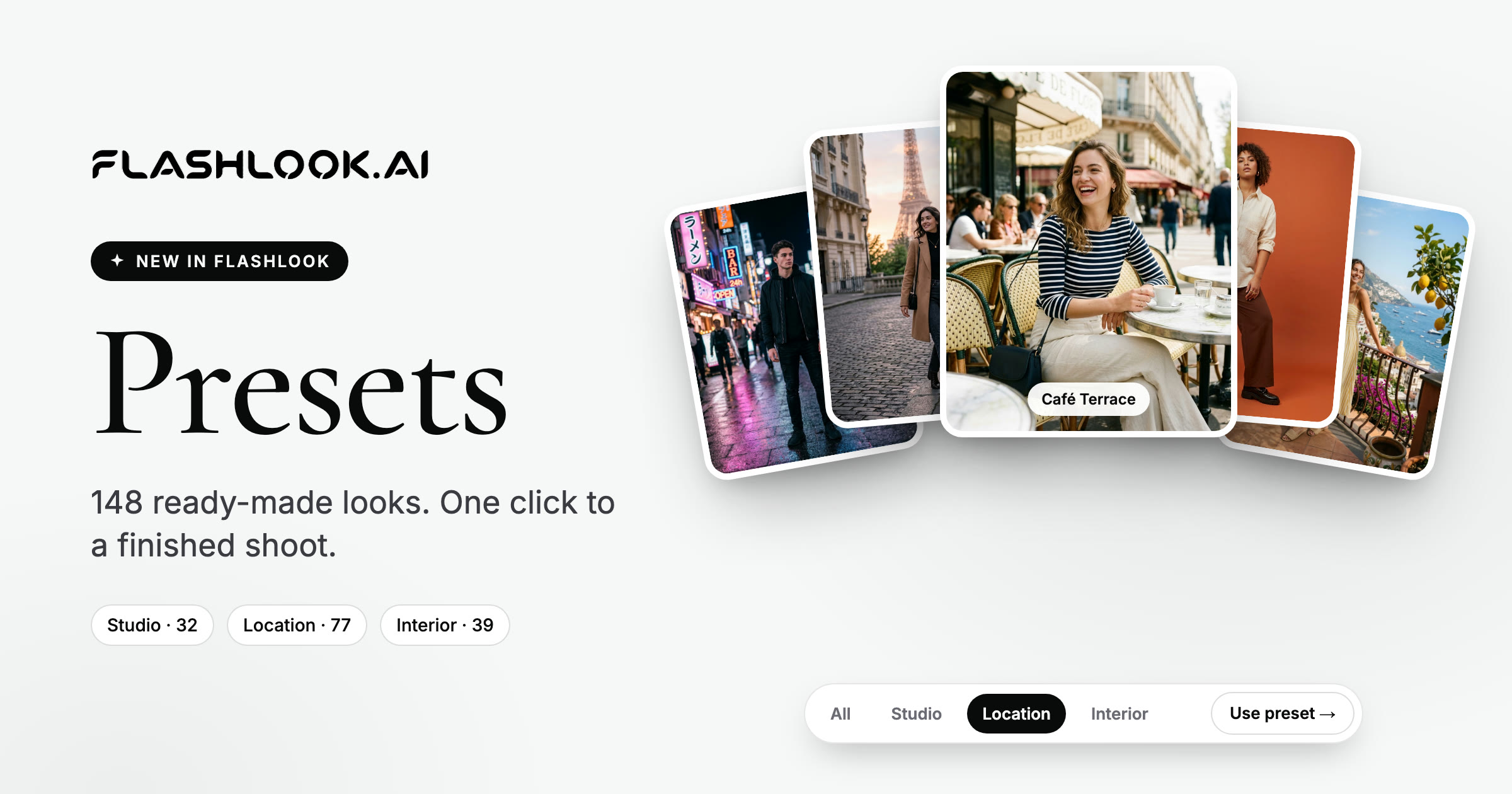
Now you can start from a finished look. The Atelier's preset library has 148 ready-made looks - studios, real locations and furnished interiors - and one click puts any of them on your next shoot. Every cover in this post is a real preset you can use today.
What a preset is
A preset is a whole shoot direction saved as one choice. It sets:
- The scene - a studio backdrop, a real place outdoors, or a furnished room
- The light - from soft studio light to golden hour, overcast or neon
- The pose and expression - candid walking shots, seated moments, power stances
- The color grade - natural, warm, cinematic, film, black and white
- The frame - 4:5 for most, with presets made for 1:1, 9:16, 2:3, 16:9 and 21:9
You still choose the model and the product. The preset handles everything around them, so the shoot looks directed, not default.
How to use a preset
Open the Atelier, pick your model and product, and click the Preset card in the composer. For photo shoots, the preset window now opens on the Public tab - the library - so a finished look is the first thing you see.
Step 1 · Browse or filter
The library is a visual gallery: big covers, each with its name and a one-line description of the look. Use the filters at the top to narrow it down:
- Studio (32) - seamless backdrops in every color, from pure white e-commerce to black luxury and colored-gel editorial
- Location (77) - real places, from Paris mornings and Tokyo crossings to beaches, deserts, vineyards and snowy cabins
- Interior (39) - furnished rooms and sets, from a cozy bedroom or a modern office to a retro diner, a ballroom or a mirror room
Step 2 · Click to use it
Click a cover and the preset is applied. The Preset card shows the cover and the preset's name, so you always know which look is on.
Step 3 · Generate - or fine-tune first
Hit Generate and every shot follows the preset. Want to change one thing - a different backdrop color, a closer framing, a calmer pose? Open the New tab and adjust it. The optional fine-tuning sits below a clear divider, so the core choices stay simple. Like what you made? Save it as your own preset under Saved and reuse it on every product.
The whole library
Here's every public preset. Filter by scene and tap a cover to see what it's made for.
Presets made for a placement
Some presets are built around where the photo will live. They shoot straight in the right frame, with the composition that placement needs - like open space on one side of a web banner for your headline.
Which preset should I start with?
- Selling on a product page or marketplace? Start with Studio Product Page, Pure White E-commerce or Square Catalog - clean, consistent and true to color.
- Launching a drop? Try a bold studio like Terracotta Pop, Color Gel Lights or Flash Party.
- Seasonal campaign? Match the season: Summer Beach or Amalfi Coast for summer, Autumn Forest or Pumpkin Patch for fall, Snowy Cabin or Christmas Market for the holidays.
- Social content? Story & Reel, Mirror Selfie and Grocery Run feel native to the feed.
- Selling a specific category? Several presets name what they're for - Caramel Knit for knitwear, Bottoms & Footwear for trousers, skirts and shoes, Resort Poolside for swimwear, Modern Office for workwear.
Tip: one preset across a whole collection is the fastest way to a consistent catalog. Same light, same backdrop, same mood on every product.
Presets in Collection Autopilot
The same library is available in Collection Autopilot, where one preset styles an entire drop. Studio Product Page is the default there: it shoots a full product-page set for every item - full front, product card, back, detail and an editorial frame (plus a lower crop for bottoms).
Pricing
Presets are free to use. A shoot with a preset costs the same as any other shoot, and the price is always on the Generate button before you spend anything.
Try it
Open the Atelier →, pick a product, click Preset and start from a finished look.
FAQ
What are Flashlook public presets?
Ready-made shoot directions in the Atelier. Each preset sets the scene, light, pose, expression, color grade and frame for a shoot, so you can start from a finished look instead of setting every option by hand. There are 148 of them: 32 studio, 77 location and 39 interior looks.
How do I use a preset?
In the Atelier, click the Preset card in the composer. For photo shoots it opens on the Public tab. Filter by Studio, Location or Interior, click a cover to apply it, and hit Generate.
Do presets cost extra?
No. Presets are free to use, and a shoot with a preset costs the same as any other shoot. The price is shown on the Generate button.
Can I change a preset after applying it?
Yes. Open the New tab in the preset window to adjust anything - backdrop, framing, pose and more - and save the result as your own preset under Saved.
Are there presets for Reels, Stories and banners?
Yes. Story & Reel, Vertical Motion and Mirror Selfie shoot in 9:16, Pinterest Pin in 2:3, Feed Ad and Square Catalog in 1:1, Web Banner in 16:9 and Cinematic Widescreen in 21:9.
Can I use presets in Collection Autopilot?
Yes. The same library is available in Collection Autopilot, where one preset styles a whole drop. Studio Product Page is the default and shoots a full product-page set for every item.
Consistent AI fashion models for catalog and UGC. Open Studio · Browse AI Fashion models