 FLASHLOOK.AI
New in your gallery: filters, light and crop with the Flashlook photo editor
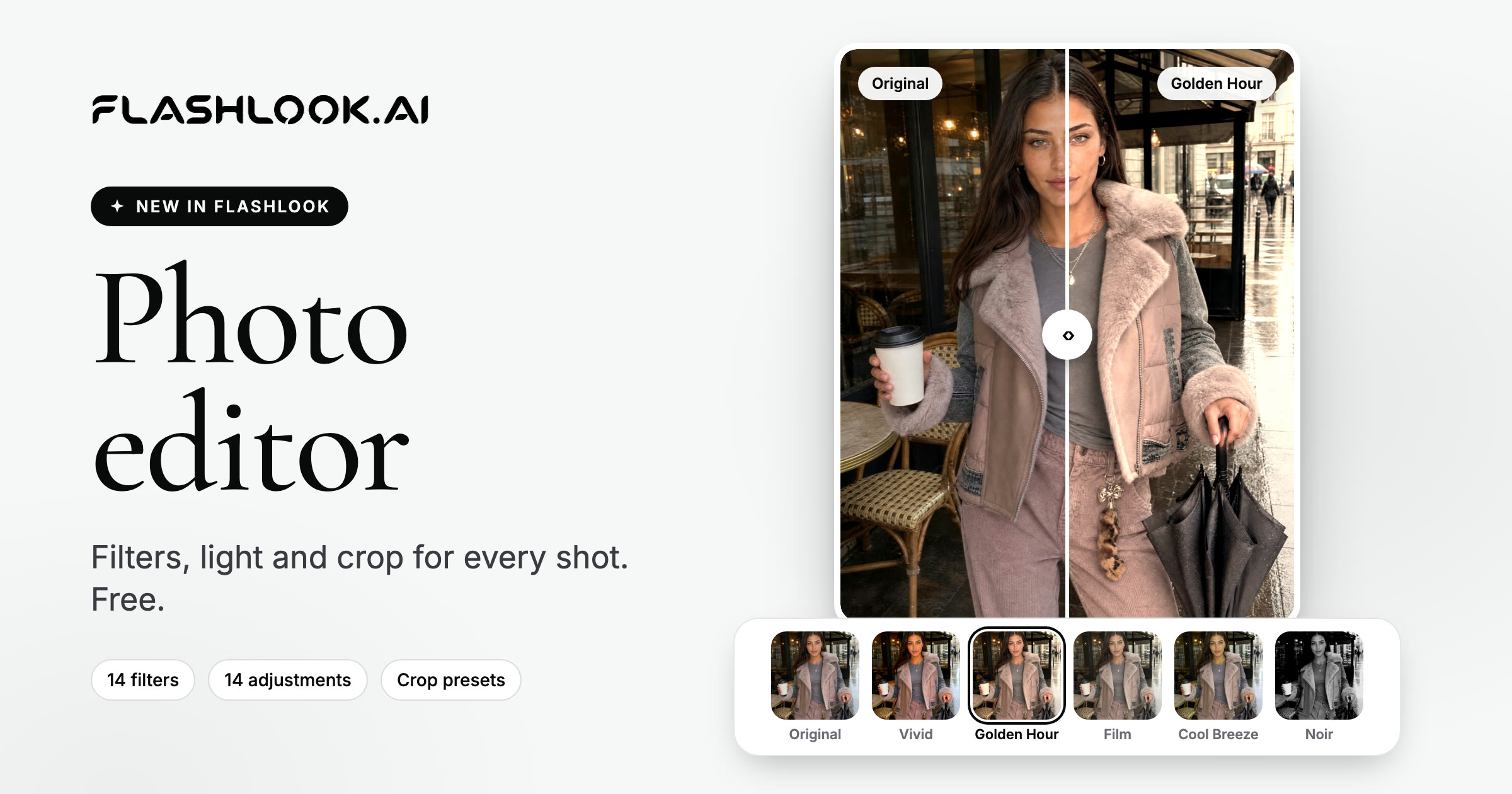
14 filters, 14 adjustments and crop presets for every placement - right in your gallery, free. Here's what's new and how to edit your first shot.
A shot can be almost right. A little too cool for a summer drop, a touch dark for a white product page, framed for the feed when you need a Story. Until now, fixing that meant downloading it, opening another app, and uploading the result again.
Now it takes a few seconds, right in your gallery. The Flashlook photo editor adds filters, light and color adjustments and crop to every shot you make - and it's free.
How to open it
Open any image in your Atelier gallery and click Edit. The editor opens full screen with your photo in the middle and three tabs at the bottom: Adjust, Filters and Crop. Use the arrows on the sides to move to the next shot without closing it.
Filters: a whole new look in one tap
The Filters tab has 14 looks plus Original, each previewed on your own photo:
- Vivid, Vivid Warm and Vivid Cool - richer color that pops on a feed
- Dramatic, Dramatic Warm and Dramatic Cool - deeper contrast for campaign images
- Studio - bright, clean and even, made for product pages
- Editorial and Film - softer, magazine and analog moods
- Golden Hour and Cool Breeze - warm sunlight or a fresh, cool cast
- Mono, Silvertone and Noir - three kinds of black and white
Every filter has an Intensity slider, so you can use just a hint of it. Try it on the shot below:
Tip: press and hold the photo at any time to see the original. Let go to see your edit again.
Adjust: fine-tune light and color
The Adjust tab has 14 sliders. Pick a tool, drag the slider, and a small dot marks every tool you've changed. Filters and adjustments stack, so you can choose a filter and then fine-tune it.
Small changes go a long way. Here's one shot with a little more exposure, contrast and warmth, and the Golden Hour filter at 72%:
Crop: one shot, every placement
The Crop tab reframes your shot for wherever it's going:
- Free and Original, plus Square, 4:5, 3:4, 9:16 and 16:9
- Straighten with a fine slider, Rotate in 90° steps, and Flip
- Drag the frame to place it exactly where you want
Zoom in to check the details
Zoom in on fabric, stitching or a print before you save. Scroll or pinch on the photo, or use the zoom buttons - up to 5×. Zoomed previews re-render sharper, so you see real detail, not blurry pixels.
Save a copy - the original stays
Click Save copy and your edit is added to your gallery as a new image, next to the original. Your original shot is never changed, so you can always go back and make another version. Changed your mind mid-edit? Revert clears everything, and Cancel asks before discarding your changes.
You can also download the shot or copy its link straight from the editor.
Tips for better edits
- Match the destination. Studio and a little exposure for product pages; Vivid or Dramatic for ads; Film or Editorial for social.
- Keep a collection consistent. Use the same filter and intensity on every shot from one drop.
- Go easy on intensity. 60-80% often looks more natural than 100%.
- Crop last. Fix light and color first, then make one copy per placement.
Pricing
The photo editor is free on every plan. Editing, saving copies and downloading don't use any credits.
Try it
Open your gallery →, pick a shot and click Edit.
New to Flashlook? Create a free account, shoot your first product on a model, then make it yours in the editor.
FAQ
Is the Flashlook photo editor free?
Yes. The photo editor is free on every plan. Editing, saving copies and downloading don't use credits.
How do I open the photo editor?
Open any image in your Atelier gallery and click Edit. The editor has three tabs: Adjust, Filters and Crop.
Which filters are included?
14 filters plus Original: Vivid, Vivid Warm, Vivid Cool, Dramatic, Dramatic Warm, Dramatic Cool, Studio, Editorial, Film, Golden Hour, Cool Breeze, Mono, Silvertone and Noir. Each has an intensity slider.
Does editing change my original image?
No. Save copy adds the edited image to your gallery as a new image. The original stays exactly as it was.
Which crop sizes are available?
Free, Original, Square (1:1), 4:5, 3:4, 9:16 and 16:9, plus straighten, rotate and flip.
Can I compare my edit with the original?
Yes. Press and hold the photo in the editor to see the original, and let go to see your edit again.
Consistent AI fashion models for catalog and UGC. Open Studio · Browse AI Fashion models