 FLASHLOOK.AI
Introducing Edits: turn your shoots into video ads in a minute
Pick your shots, pick a template, export a ready-to-post video ad for Reels, TikTok, feeds or product pages. Here's what's new and a step-by-step guide to making your first edit.
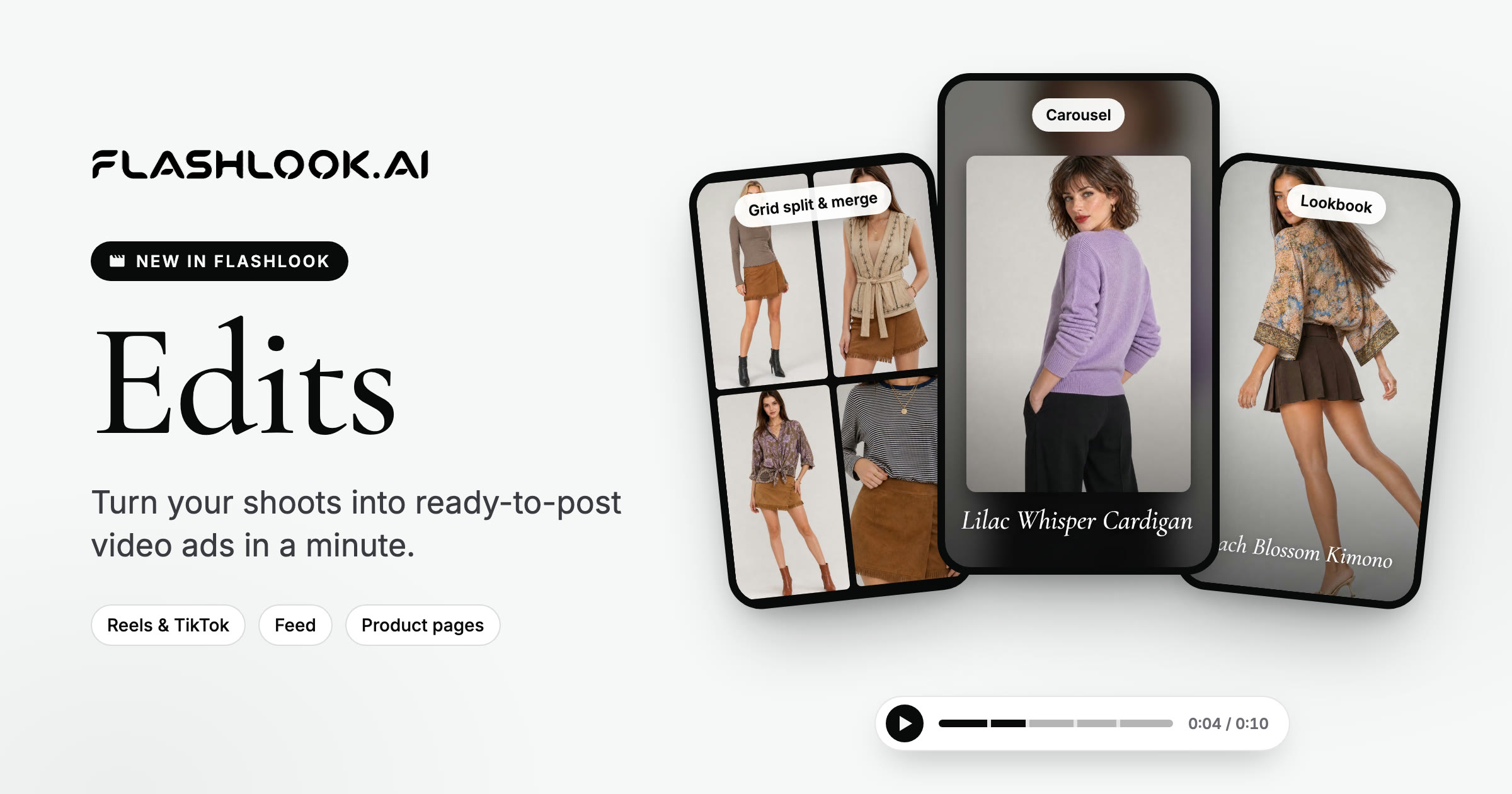
You already have the shots. A full product shoot, on-model, in every angle you need. But a Reel, a TikTok, a feed ad or a looping video on a product page usually means one more trip: an editor, a template app, exporting stills, lining them up, adding text, picking a size, rendering it out.
Today that last step lives inside Flashlook. Meet Edits: pick your shots, pick a template, and export a ready-to-post video ad - in about a minute. No timeline, no keyframes, no editing skills. Every video in this post was made with Edits from regular Flashlook shoots.
What Edits does
Edits turns the photos and clips in your Atelier into short, branded video ads (8 to 11 seconds). You choose the media and one of six motion templates; Flashlook handles the timing, the camera moves, the transitions, your headline and an end card with your call to action. You see a live preview as you go, so what you see is what you export.
It's made for the places fashion brands actually post:
- Reels, TikTok and Stories (9:16)
- Instagram and Facebook feed (4:5)
- Product pages and marketplaces (1:1)
How to make your first edit
Open the Atelier and click Edits in the top bar (or go straight to flashlook.ai/atelier/edits). The studio has three steps on the left and a live preview on the right.
Step 1 · Pick your media
You have two ways to start:
- From my images - pick shots and clips you've already made. Switch between Gallery (everything, newest first) and By product (each product with its shoots, so you can build an edit around one item). Use All, Images or Clips to filter.
- Generate a clip - pick one image and Flashlook animates it into a 5-second clip with our Reel video agent, then adds it to your edit. The exact credit price is shown on the button before you start.
The order you pick is the order they play. To change it, drag the thumbnails in the strip under the preview, or use the arrows - and remove anything you don't want with one click.
Tip: mix stills with a clip. A single moving shot in the middle of an edit makes the whole ad feel like video, not a slideshow.
Step 2 · Pick a template
Six templates, each with its own rhythm. The preview updates instantly, so try a few with the same picks and keep the one that fits.
- Lookbook (2-8 shots) - each shot slowly drifts and cross-fades into the next. Calm and editorial.
- Grid split & merge (2-4 shots) - your shots pop in as a grid, merge into one hero shot, then split again. Great for showing a full look or a colorway range.
- Punch-in (1-4 shots) - snap zooms into the garment on every shot. Made for details: fabric, stitching, prints.
- Before / after (exactly 2) - a wipe from your first pick to the second.
- Carousel (2-8 shots) - cards swipe across a soft blurred backdrop, like a shoppable story.
- Beat cut (2-8 shots) - a hard cut on every beat with a little pop. Fast and punchy - the most "TikTok" of the six.
Lookbook and Punch-in also let you choose the transition between shots: Fade, Slide, Zoom, Flash or Whip.
Before / after: from product photo to on-model. Put a product photo first and an on-model shot second, and Before / after shows your shopper exactly what Flashlook did - the garment on its own, then on a model. Use By product to find both in seconds.
Step 3 · Format & text
- Format - Reels / TikTok (9:16), Feed (4:5) or PDP / square (1:1). Your shots are reframed automatically.
- Headline - a short line over your shots, like the product name or "The new drop".
- Button text - adds a closing end card with your call to action, like "Shop now". Leave it empty to skip the end card.
Export and download
Click Export edit. Rendering takes about half a minute, and the video downloads automatically as an MP4 as soon as it's ready. Every export is also saved under Your edits at the bottom of the studio, so you can download it again any time.
One product, many ads
Because an edit takes a minute, you don't have to choose. Cut the same product as a punchy Beat cut for TikTok and a calm Lookbook for the feed, and let your audience pick the winner. Here's the same pair of jeans, two ways - the first one opens with a clip made with Generate a clip:
Tips for better edits
- Lead with your strongest shot. The first second decides whether someone keeps watching.
- Keep the headline short. Four or five words read well on a phone; up to 60 characters fit.
- Match the template to the product. Punch-in for textures and prints, Grid for full looks, Carousel for a range, Before / after for proof.
- Use the same model across shots. An edit feels like one campaign when the shots come from one shoot.
- Make a few versions. Different templates and formats for the same product are the easiest A/B test you'll run.
Pricing
Each export costs 10 credits, and the price is always shown on the Export edit button. On the Free plan, your first export is included and carries the Flashlook watermark, like other free renders. Paid plans get unlimited exports with no watermark. Previewing is always free - try every template before you spend anything.
More edits made with Flashlook
All of these were made from regular Flashlook shoots, with no editing outside the studio.
Try it
Your next ad is already in your gallery. Open Edits →
New to Flashlook? Open the Atelier, create a free account and shoot your first product on a model - then turn it into a video ad in a minute.
FAQ
What is Flashlook Edits?
Edits is a simple video ad maker inside the Flashlook Atelier. You pick photos and clips from your shoots, choose one of six motion templates, add a headline and a call to action, and export a ready-to-post MP4 for Reels, TikTok, feeds or product pages.
How much does an Edits export cost?
Each export costs 10 credits. The Free plan includes one export, with a watermark. Paid plans get unlimited exports without a watermark. Previewing templates is always free.
Which video formats does Edits support?
9:16 for Reels, TikTok and Stories, 4:5 for Instagram and Facebook feeds, and 1:1 for product pages and marketplaces. Your shots are reframed for the format you choose.
Can I use video clips in an edit, not just photos?
Yes. You can pick clips you've already made in Flashlook, or use Generate a clip to animate one image into a 5-second clip with the Reel video agent and add it to your edit. The clip's credit price is shown before you start.
How long are the videos?
Between about 8 and 11 seconds, depending on the template and how many shots you pick - the length that works best for short-form ads.
Do I need video editing experience?
No. There's no timeline or keyframes. You pick media, a template, a format and your text, and the live preview shows exactly what you'll export.
Consistent AI fashion models for catalog and UGC. Open Studio · Browse AI Fashion models